


















Artificial intelligence is changing how we work, create content, write code, and solve everyday problems. However, most popular AI services rely on cloud infrastructure, requiring an internet connection and sending requests to remote servers.
But what if you could run powerful AI models directly on your own computer?
Running AI locally gives you greater control over your data, allows you to experiment without paying for every API request, and makes it possible to use certain AI tools without an active internet connection.
The best part? You don’t necessarily need an expensive workstation or advanced programming knowledge to get started.
Thanks to applications like Ollama and LM Studio, installing and running local AI models has become significantly more accessible.
In this guide, you’ll learn how to run AI models locally on your PC, what hardware you need, which models are worth trying, and how to configure your computer for better performance.
Whether you’re using Windows 11, experimenting with AI development, or simply looking for a private alternative to cloud-based chatbots, this tutorial will help you get started.
What Does Running AI Locally Mean?
Running AI locally means executing an artificial intelligence model directly on your computer instead of relying on cloud-based servers.
Traditional AI services process most requests remotely. When you submit a prompt, your request is transmitted to the service provider’s infrastructure, where the model generates its response.
Local AI works differently.
You download the model’s necessary files and use compatible software to execute it on your computer’s hardware.
Once properly installed, many local models can operate without an internet connection.
This approach gives users more control over the environment in which their AI applications operate.
Local AI models can perform tasks such as:
- Generating and rewriting text.
- Summarizing documents.
- Answering technical questions.
- Assisting with programming.
- Creating content outlines.
- Processing information stored on your computer.
- Powering custom AI applications.
However, capabilities vary depending on the model, available hardware, and software configuration.
Running a model locally doesn’t automatically give it access to your files, web browser, or operating system. Those capabilities require additional integrations and appropriate permissions.
Why Run AI Models on Your Own Computer?
There are several reasons why local artificial intelligence is attracting attention among developers, businesses, and technology enthusiasts.
1. Greater Privacy and Data Control
One of the most important advantages of local AI is the ability to process information without routinely sending prompts to external AI servers.
This can be particularly useful when working with confidential documents, internal company information, or personal notes.
However, local execution doesn’t automatically guarantee complete privacy.
Some applications offer optional cloud models, online integrations, telemetry, or external plugins.
For sensitive information, review the application’s privacy settings and disable unnecessary network integrations.
2. Offline AI Capabilities
Once you’ve downloaded the necessary model files and installed compatible software, many local AI applications can operate without an internet connection.
This makes them useful for traveling, working in areas with unreliable connectivity, or maintaining access to AI tools during internet outages.
Remember that web searches, external integrations, and cloud-dependent features will still require connectivity.
3. More Predictable Usage Costs
Cloud-based AI services may charge subscription fees or usage-based API costs.
Local models eliminate recurring cloud inference charges for tasks processed entirely on your computer.
However, running AI locally isn’t completely free.
You’ll still need suitable hardware, electricity, storage space, and potentially paid software or commercial model licenses.
4. Greater Customization
Local execution gives developers more opportunities to experiment with model configurations, integrate AI into applications, and control how requests are processed.
Depending on the software, you can modify parameters such as context length, temperature, and hardware allocation.
Advanced users can also build document-processing systems, coding assistants, and automated workflows around locally hosted models.
What Hardware Do You Need to Run AI Locally?
Before downloading an AI model, it’s important to understand your computer’s hardware limitations.
Local AI performance depends heavily on available system memory, processor capabilities, graphics hardware, model architecture, and quantization.
Fortunately, smaller AI models can operate on relatively modest computers.
The following specifications provide a practical starting point rather than guaranteed performance requirements.
| Hardware | Entry-Level Setup | Recommended Starting Point |
|---|---|---|
| Operating system | Compatible Windows, macOS, or Linux version | Windows 11 |
| Processor | Supported modern CPU | Recent multicore CPU |
| RAM | 8 GB for selected small models | 16–32 GB |
| GPU | Optional for certain small models | Dedicated GPU with 8 GB or more VRAM |
| Storage | 10 GB of available space | 30–50 GB available |
| Internet | Required for initial downloads | Broadband connection |
These specifications are general recommendations. Your actual requirements depend on the software and model you choose.
For example, a small quantized model may run using system RAM without a dedicated graphics card.
Larger models can demand considerably more memory.
If you’re using LM Studio on Windows, you should also verify processor compatibility. Certain x64 configurations require AVX2 instruction support.
Do You Need an NVIDIA Graphics Card?
No.
A dedicated NVIDIA GPU can significantly accelerate supported AI workloads, but it’s not mandatory for running every local model.
Some models can execute entirely on a compatible CPU, although responses may be considerably slower.
Depending on the application and supported computing backend, AMD graphics cards and integrated graphics solutions may also be compatible.
For beginners, starting with a lightweight model is generally more practical than purchasing expensive hardware immediately.
Method 1: How to Run AI Locally Using Ollama
Ollama is an application designed to simplify downloading, managing, and running AI models.
It supports Windows, macOS, and Linux and provides both interactive model execution and an API for developers.
For this tutorial, we’ll focus primarily on Windows users.
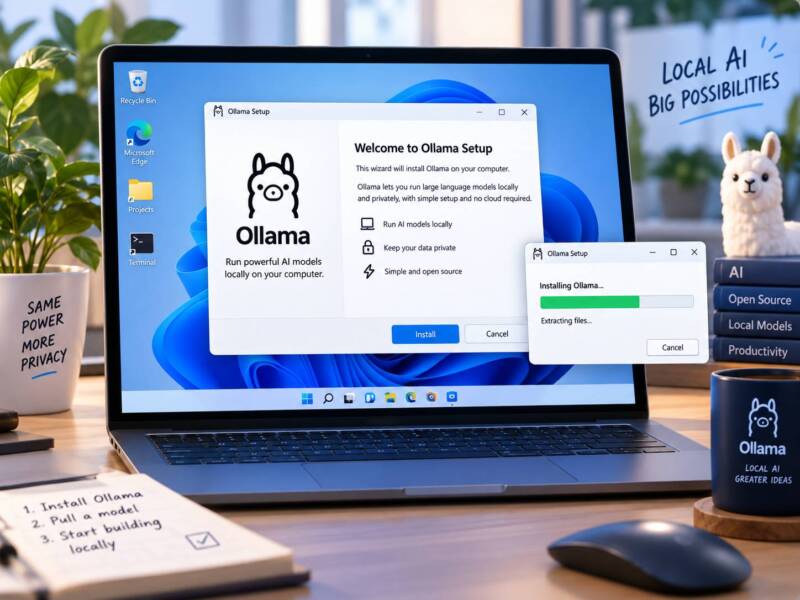
Step 1: Download and Install Ollama
Visit the official Ollama website and navigate to its download section.
Select the Windows installer and download it.
Launch the installer and follow the installation instructions.
For supported Windows systems, the graphical installer provides a straightforward setup process.
Once installation is complete, open Ollama.
You can use its application interface or interact with it through Windows Terminal or PowerShell.
Important: Download software only from the official project website or other sources you trust.
Step 2: Open Windows Terminal
Windows Terminal provides a convenient way to execute Ollama commands.
To open it:
- Click the Windows Start button.
- Search for Windows Terminal.
- Open the application.
- Select PowerShell if necessary.
Next, verify that Ollama is available by entering:
ollama --version
The terminal should display the installed version if the command is available and the installation was successful.
If Windows cannot recognize the command, restart your terminal or check whether Ollama was installed correctly.
Step 3: Download Your First AI Model
Now you’re ready to install an AI model.
For beginners, Meta’s Llama 3.2 3B is an accessible option because of its relatively small download size.
Enter the following command:
ollama run llama3.2
Ollama will download the required model files if they aren’t already installed.
The download size of the default Llama 3.2 model is approximately 2 GB, although storage requirements and available model variants may change.
Once the download finishes, Ollama starts an interactive conversation.
You can now communicate directly with the model.
For example, try entering:
“Explain artificial intelligence in simple terms.”
The model should generate its response using your computer’s hardware.
The first response may take longer because the application needs to load the model into memory.
Step 4: Experiment With Different Prompts
Now that your local model is running, try several tasks.
Content creation
“Write an outline for a beginner-friendly article explaining how artificial intelligence works.”
Programming
“Explain the difference between Python lists and dictionaries with examples.”
Productivity
“Create a weekly productivity plan for someone working remotely.”
Learning
“Explain how neural networks work using an easy-to-understand analogy.”
Compare the model’s responses and observe how quickly it processes different requests.
Keep in mind that smaller models can make factual mistakes, produce unreliable code, or struggle with complex reasoning.
Always verify important information.
Step 5: Install Additional AI Models
Once you’re comfortable using Ollama, you can experiment with additional models.
For example, Google’s Gemma 3 family offers several sizes for different hardware configurations.
To launch its 1-billion-parameter variant, enter:
ollama run gemma3:1b
For a larger model with additional capabilities, try:
ollama run gemma3:4b
The 4B variant supports image input as well as text, although the experience depends on your software interface.
You can also use Ollama’s model library to explore other supported models.
Before downloading anything, check the model’s requirements, license, and intended use.
Step 6: Manage Your Installed Models
Ollama provides commands that make managing local models relatively straightforward.
To display downloaded models, enter:
ollama list
To check which models are currently loaded, use:
ollama ps
To remove a model you no longer need, enter:
ollama rm llama3.2
Replace llama3.2 with the name of the model you want to delete.
Removing unused models can help recover storage space.
When using Ollama’s interactive terminal, type /bye to exit the conversation.
You’re now running artificial intelligence locally on your computer.
Method 2: How to Run AI Locally Using LM Studio
If you prefer graphical applications instead of terminal commands, LM Studio provides another way to run local AI models.
It combines model discovery, downloads, model management, and a chat interface in a desktop application.
This makes it particularly interesting for users who want to experiment with local AI without spending much time using the command line.
Step 1: Install LM Studio
Visit the official LM Studio website.
Download the installer compatible with your operating system.
Follow the installation procedure and launch the application.
Before installing, review the official system requirements to ensure your processor and operating system are supported.
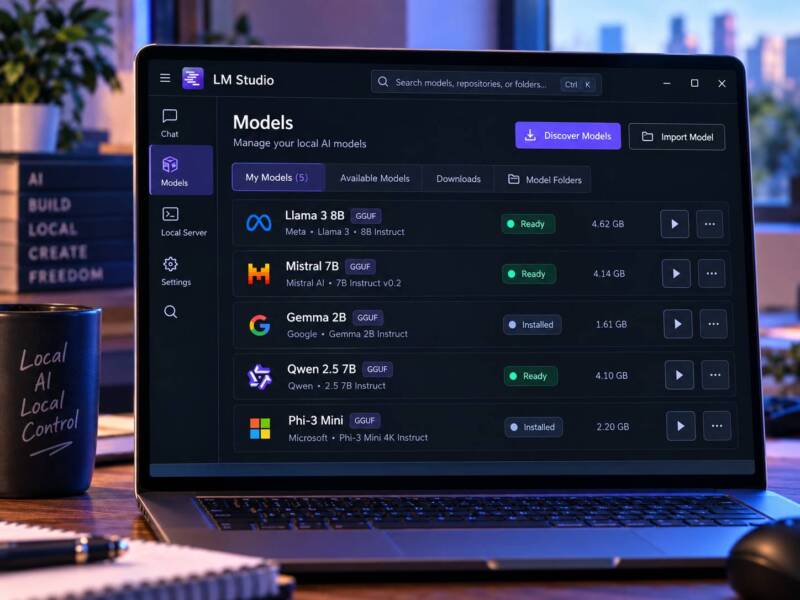
Step 2: Find a Compatible AI Model
Once LM Studio is running, open its model discovery section.
Search for a model compatible with your available hardware.
For beginners, smaller instruction-tuned models are usually easier to work with.
Depending on current availability, you may find models from families such as:
- Meta Llama.
- Google Gemma.
- Qwen.
- DeepSeek.
- Mistral.
Model availability can change as new versions are released.
Pay attention to model size, quantization, supported capabilities, and estimated memory requirements.
Step 3: Download Your Selected Model
Choose a suitable model and download it.
If LM Studio offers multiple quantized versions, select one appropriate for your available memory.
Quantization reduces the precision used to represent model parameters, helping lower storage and memory requirements.
However, more aggressive quantization can sometimes reduce output quality.
For your first experiment, consider a relatively small model instead of immediately downloading one with tens of billions of parameters.
Step 4: Load the Model
After downloading the model, navigate to LM Studio’s chat interface.
Select your downloaded model and load it.
Depending on your application version, the interface may display options for adjusting memory allocation and other model settings.
Beginners can generally start with the default configuration.
If you experience performance problems, try a smaller model or reduce the configured context length.
Step 5: Start Chatting With Your Local AI
Once the model is loaded, enter a prompt.
For example:
“Explain how to build a simple website using HTML and CSS.”
The AI should generate its response directly through your locally loaded model.
After downloading all necessary components, LM Studio supports fully offline model operation.
This makes it useful for users who want a desktop-based AI assistant without relying on a continuous internet connection.
Ollama vs. LM Studio: What’s the Difference?
Both applications make local AI considerably more accessible, but they approach the experience differently.
| Feature | Ollama | LM Studio |
|---|---|---|
| Local model execution | Yes | Yes |
| Graphical interface | Yes | Yes |
| Terminal-based workflows | Strong support | Available through CLI tools |
| Model downloads | Yes | Yes |
| Local API | Yes | Yes |
| Offline operation | Yes | Yes |
| Developer integrations | Extensive | Extensive |
| Model discovery | Model library | Integrated model search |
Ollama is particularly useful when you want terminal commands, scripts, local APIs, or developer workflows.
LM Studio offers an integrated graphical environment for discovering models and experimenting with local AI.
Both are suitable for beginners, depending on personal preferences and intended use.
You can also install both applications on the same computer.
However, downloading identical models through separate applications may consume additional storage.
How to Make Local AI Models Run Faster
Local AI performance depends on more than model size.
If your computer generates responses slowly, several adjustments may help.
Choose Smaller Models
One of the simplest performance improvements is selecting a model that fits comfortably within your available memory.
For example, a quantized 3B model will generally require fewer resources than a similarly configured 27B model.
However, model architecture and implementation also influence performance.
Smaller models aren’t always appropriate for demanding reasoning or coding tasks.
Use GPU Acceleration
When supported, GPU acceleration can significantly improve response generation.
Make sure your graphics drivers are updated and verify that your chosen application supports your GPU.
Some applications display information about hardware utilization, allowing you to see whether the model is using GPU memory.
Adjust Context Length
Context length determines how much information a model can consider during a request.
Although larger context windows can be useful, they may also increase memory consumption.
If your computer struggles to load a model or generate responses, reducing context length may help.
Close Resource-Intensive Applications
Web browsers with dozens of tabs, games, video editing software, and other demanding applications compete for system resources.
Closing unnecessary programs may free up memory and improve your local AI experience.
Keep Enough Storage Available
AI models can consume several gigabytes of disk space.
Maintaining adequate free storage also helps prevent problems during downloads and software updates.
An SSD can improve model-loading times compared with a traditional mechanical hard drive.
Is Running AI Locally Completely Private?
Local AI can provide meaningful privacy advantages, but the actual level of protection depends on your configuration.
When a model executes entirely on your computer and the application doesn’t transmit information externally, your prompts can remain on your device.
However, additional features may change this behavior.
For example, cloud-based models, web search integrations, third-party plugins, and remote APIs may transmit information over the internet.
You should also consider ordinary computer security risks.
Malware, compromised applications, unauthorized access, and insecure network configurations can expose information stored locally.
To improve privacy:
- Download models and applications from reputable sources.
- Review application privacy settings.
- Disable cloud integrations when they aren’t needed.
- Keep your operating system and software updated.
- Avoid exposing local AI servers directly to the public internet.
- Review third-party plugins before granting access to sensitive information.
For particularly sensitive work, consider testing your setup with the internet disconnected after downloading the necessary software and models.
Remember that data privacy also depends on how your computer itself is secured.
Common Problems When Running AI Locally
Beginners sometimes encounter hardware limitations or software configuration issues.
Here are several common problems and potential solutions.
Problem: The AI Model Is Running Too Slowly
Start by checking the model’s size and your computer’s available RAM.
Try a smaller quantized model and close unnecessary applications.
If your computer has a compatible GPU, verify that hardware acceleration is working correctly.
CPU-only execution can be considerably slower than GPU-accelerated processing.
Problem: The Model Won’t Load
Insufficient memory is a common reason why larger models fail to load.
Try reducing your context length or selecting a smaller model.
Also verify that your application version supports the selected model.
Problem: Ollama Commands Aren’t Recognized
If Windows Terminal doesn’t recognize Ollama commands, make sure installation completed successfully.
Close and reopen the terminal.
If the problem persists, check Ollama’s installation documentation.
Problem: AI Responses Are Incorrect
Local AI models can hallucinate, misunderstand instructions, or produce outdated information.
This isn’t necessarily a software malfunction.
Provide clearer prompts, consider using a model better suited to your task, and verify important results against reliable sources.
Don’t rely on a local model alone for critical medical, financial, legal, or security decisions.
Frequently Asked Questions
Can You Run AI Models Locally Without a GPU?
Yes.
Many smaller AI models can run on compatible CPUs without a dedicated graphics card.
However, performance depends on the processor, available RAM, model architecture, and quantization.
A GPU is particularly useful when working with larger models or generating lengthy responses.
How Much RAM Do You Need to Run AI Locally?
Some lightweight models can run on computers with 8 GB of RAM, depending on the operating system and available resources.
For a more flexible experience, 16 GB is a reasonable starting point.
Larger models and context windows may require 32 GB or significantly more.
Always check the requirements of your selected model.
Can You Run ChatGPT Locally?
You cannot simply download and install the entire proprietary ChatGPT service on a personal computer.
However, you can run compatible downloadable AI models locally using applications such as Ollama and LM Studio.
Open-weight models, including certain models released by OpenAI and other developers, may be available for local deployment under their respective license terms.
The capabilities and behavior of these models can differ significantly from the hosted ChatGPT experience.
Can Local AI Work Without Internet Access?
Yes.
Once you’ve installed the necessary software and downloaded your model files, many local AI applications can operate offline.
However, online searches, remote APIs, optional cloud models, and certain third-party integrations require an internet connection.
Is It Free to Run AI Models Locally?
Many local AI applications and downloadable models can be used without paying recurring cloud inference fees.
However, individual models and applications have different licenses and commercial-use conditions.
You also need to consider hardware, electricity, and storage expenses.
Which Is Better for Beginners: Ollama or LM Studio?
Both are accessible starting points.
Ollama provides a convenient combination of desktop functionality, terminal commands, and developer tools.
LM Studio offers an integrated graphical interface for discovering, downloading, and running models.
Your preferred option depends on whether you want a command-driven workflow or a more visual environment.
Final Thoughts: Should You Run AI Locally?
Running AI models locally is an increasingly practical way to explore artificial intelligence while maintaining greater control over how your information is processed.
Modern applications such as Ollama and LM Studio have simplified tasks that previously required considerable technical knowledge.
You no longer need to build complex AI infrastructure just to experiment with a downloadable language model.
For beginners, the most practical approach is to start with a small model, evaluate its performance, and gradually explore more advanced configurations.
You can begin with Ollama and Llama 3.2 or use LM Studio to discover models through a graphical interface.
As you gain experience, you can experiment with local APIs, coding assistants, document processing, and custom AI applications.
Although local models won’t replace every cloud-based AI service, they offer an alternative for users who value customization, offline access, and greater control over their data.
If you’ve been wondering how to run AI models locally on your PC, the tools and techniques covered in this guide provide a practical starting point.

TechnologyHQ is a platform about business insights, tech, 4IR, digital transformation, AI, Blockchain, Cybersecurity, and social media for businesses.
We manage social media groups with more than 200,000 members with almost 100% engagement.